Pass 2015 – First Impressions

It’s Pass 2015 this week and I’m attending (seriously I’m unbelievably chuffed)! As they’ll be a shedload of blogs about it this week I thought I’d shamelessly jump on the bandwagon.

I flew out to Seattle from Dublin on Friday (god that was a long day) so I’ve had a couple of days knocking around town doing the usual touristy things. Went up the Space Needle and did the underground tour on Saturday, both of which were pretty cool. Fantastic views from the Needle and the underground tour was a really interesting delve into the history of the area. Then yesterday I went to Pike Street Market and then went wandering around. Ended up by the Seattle stadium, saw that there was a Sounders game on so ended up going to that. Cracking day out.

But I’m not here to do sight seeing really, I’m here for SQL Pass 2015 and it kicked off this morning with the first set of pre-con sessions. Have to say, first impression is how big is this place?? The Washington State Convention Centre is absolutely huge! It completely blows any other conference I’ve attended out of the water. I’ve signed up for the first timers reception and the welcome sessions but today was Allan Hirt’s (b|t) session on high availability.

I really enjoyed the session, Allan is a great presenter with a seemingly limitless knowledge of windows clustering. He talked us through many different configuration options and what we should be considering when setting up a windows failover cluster. My favourite parts of the session though was when Allan talked about what’s up and coming in SQL Server and Windows 2016, lots of new functionality which I’ll be playing with in my lab at home. He also showed us a cluster he’d setup with one node in Amazon AWS and one node in Azure! I dread to think how long that took to configure and setup…

Anyway not going to give too much information about the pre-con (I don’t think that would be appreciated). What I will do is post some notes I took. They’re just a bunch of links for subjects that I want to do further research in, hopefully a couple of blogs posts in there somewhere:-

SQL and Remote Direct Memory Access (RDMA)
https://channel9.msdn.com/Blogs/Regular-IT-Guy/Behind-the-Scenes-with-Storage-Replica-and-RDMA
Converged and Hyper-converged networking
http://www.techrepublic.com/article/hyper-converged-systems-what-you-need-to-know-about-this-hot-virtualization-topic/
Scale out file server (SOFS) for application data
https://technet.microsoft.com/en-us/library/hh831349.aspx
http://blogs.technet.com/b/josebda/
Microsoft Storage Spaces
http://social.technet.microsoft.com/wiki/contents/articles/15198.storage-spaces-overview.aspx
Install SQL Server with SMB fileshares
https://msdn.microsoft.com/en-us/library/hh759341.aspx
Windows 2016 Site Aware Clustering
http://blogs.msdn.com/b/clustering/archive/2015/08/19/10636304.aspx
Windows 2016 Cloud Witness
http://blogs.msdn.com/b/clustering/archive/2014/11/14/10572766.aspx

I’m really going to enjoy the rest of this week.

Where is my data stored?

Tables within SQL Server can contain a maximum of 8060 bytes per row. However even though columns are limited to a maximum of 8000 bytes in size, the combined size of all the columns in a table can exceed the 8060 limit. But what happens when this limit is exceeded?

Let’s create a database and have a look:-

USE [master];
GO

CREATE DATABASE [StorageTest];
GO

Now create a table to test with:-

USE [StorageTest];
GO

CREATE TABLE dbo.[Test1]
( PKID		 INT,
  FirstName	 CHAR(24),
  MiddleName CHAR(24),
  LastName	 CHAR(24));
GO

The length of each row within this table will be:-

Column Data Type Size
PKID INT 4 bytes
FirstName CHAR(24) 24 bytes
MiddleName CHAR(24) 24 bytes
LastName CHAR(24) 24 bytes
Total 76 bytes

More info on data types and their sizes

Let’s insert one row and have a look at the size:-

INSERT INTO dbo.[Test1]
(PKID, FirstName, MiddleName, LastName)
VALUES
(1, 'Andrew', 'Philip', 'Pruski');
GO
EXEC sp_spaceused 'Test1';
GO

InitialTableSize1

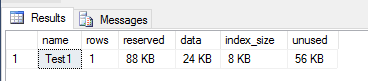
We can see that 1 row is in the table which is 8KB in size. This is because SQL stores data on 8KB pages so 8KB is the minimum size for a table which has data in it! We can see this by running the undocumented DBCC command, DBCC IND:-

DBCC IND('StorageTest','Test1',1);
GO

TableAllocations1

Not going to go into what each of the columns mean but you can see that this table has two rows. Both classified as “in-row data”, the first row is page type 10 which is an IAM page and the second row is page type 1 (a data page), which contains the row we inserted.

More info on DBCC IND and page types

“In-row data” is exactly what it sounds like, data in the rows on the page.

What happens when we add a column that will take the size of the row over the 8060 limit? I commonly see large columns added to tables with the reason of “we don’t know how big the data will be so we’re making this column as big as SQL will allow” *sigh*. For example:-

ALTER TABLE dbo.[Test1]
ADD [Address] VARCHAR(8000);
GO

Let’s populate that column with some data:-

UPDATE dbo.[Test1]
SET [Address] = 'zz'
WHERE PKID = 1;
GO

What’s the size of the table now?

EXEC sp_spaceused 'Test1';
GO

InitialTableSize1

Still the same, good, but if this column is completely filled to its maximum so the size of a row will be over the limit, what will happen to the size of the table and where will the data be stored?

Let’s fill the column up for the row that is already in the table:-

UPDATE dbo.[Test1]
SET [Address] = REPLICATE('zz',4000)
WHERE PKID = 1;
GO

Now we have a row that has exceeded the maximum size allowed, what has that done to the size of the table?

EXEC sp_spaceused 'Test1';
GO

TableSize2

Huh? The size of the table has tripled from 8KB to 24KB! What’s going? Let’s run DBCC IND again and have a look:-

DBCC IND('StorageTest','Test1',1);
GO

TableAllocations2

There are now two new pages allocated to the table, classified as “Row-overflow data”. Because we’ve gone over the row limit, SQL has allocated a new IAM page and a new page to store the data that has gone over the limit. This means that just by adding that column and populating it to its maximum limit the table has noticeably increased in size. If there were thousands/millions of rows in this table there would be a big impact on the performance of queries SELECTing from it due to the extra amount of page reads that would have to be performed.

I know this is a very contrived example but it’s good to see how SQL reacts to columns being added to tables that can make a row exceed its maximum size.

I have to admit though, I rarely see VARCHAR(4000) added to a table. What’s far more common is VARCHAR(MAX). How does SQL react to having a column with this datatype added to a table? Well, let’s find out.

First reset our table (dropping the column and rebuilding to bring it back down to its original size):-

ALTER TABLE [Test1] DROP COLUMN [Address];

ALTER TABLE [Test1] REBUILD;
GO

Add the column:-

ALTER TABLE dbo.[Test1]
ADD [Address] VARCHAR(MAX);
GO

Populate the row with data:-

UPDATE dbo.[Test1]
SET [Address] = REPLICATE('zz',4000)
WHERE PKID = 1;
GO

Check the size of the table:-

EXEC sp_spaceused 'Test1';
GO

TableSize3

Again the table has tripled in size (ignore the reserved size, it’s larger as we’ve been messing about). If we look at the page allocations we can see why:-

DBCC IND('StorageTest','Test1',1);
GO

TableAllocations3

SQL has allocated two new pages to the table, classified as”LOB data”. This time SQL has pushed out the data in the NVARCHAR(MAX) column to a special page type designed for large data types. Other data types that this applies to are nvarchar(max) and varbinary(max) (also text, ntext and image in previous versions).

So in summary, most data within SQL Server is stored on pages classified as “In-row data”. If the combined size of columns in a row exceeds 8060 bytes, then SQL will push data onto pages classified as “Row-overflow data”. Finally if certain LOB data types are used, then SQL stores that data on pages classifed as “LOB data”.

The Database Corruption Challenge

For the last ten weeks Steve Stedmen (blog | twitter) has been running a database corruption challenge. The final challenge closes today and even though I haven’t been able to take part in all of them, I have thoroughly enjoyed working through these challenges.

DBAs don’t often get to practice fixing corruption, I mean, you can corrupt a database yourself and then try and repair it but it’s kind of a easy task when you know how it was corrupted in the first place. That’s what has been great about these challenges, Steve supplied a corrupt database each week and let everyone work out how to repair it (with no data loss), he’s also provided clues in the weeks where the challenge was particularly fiendish.

These challenges have given me more confidence in my skills, beforehand I would always be looking to restore from a backup as soon as corruption was detected (depending on what the corruption was), now I feel confident that if there’s another way of repairing the data I’ll be able to find it. If a full database restore is going to take hours and you can repair the problem in a fraction of that time how much is your company going to love you?

(N.B. – Actually…we’ll see about that. Generally when there’s a problem with the database there’ll be about 5 people standing over my desk (all suggesting “helpful” ideas) so I’ll have to be pretty confident to suggest something other than restoring from backups, time will tell!)

Also as well as a fun challenge, Steve has also created a good training plan. I’ll definitely be coming back to these blog posts in the future to refresh my corruption repairing skills. I would recommend that every DBA does this, we’re paid to be able to fix these kind of issues so you always want them fresh in your mind.

Thank you Steve.

Here are the links to each weekly challenge:-
Week 1http://stevestedman.com/2015/04/introducing-the-database-corruption-challenge-dbcc-week-1-challenge/
Week 2http://stevestedman.com/2015/04/week-2-of-the-database-corruption-challenge/
Week 3 http://stevestedman.com/2015/04/week-3-of-the-database-corruption-challenge/
Week 4 http://stevestedman.com/2015/05/week-4-of-the-database-corruption-challenge/
Week 5 http://stevestedman.com/2015/05/week-5-corruption-challenge/
Week 6 http://stevestedman.com/2015/05/week-6-database-corruption-challenge/
Week 7http://stevestedman.com/2015/06/week-7-database-corruption-challenge/
Week 8http://stevestedman.com/2015/06/corruption-challenge-8/
Week 9http://stevestedman.com/2015/07/database-corruption-challenge-9/
Week 10 http://stevestedman.com/2015/07/database-corruption-challenge-10/

SQL Server 2016 – Stretch Databases

One of the features I’ve been interested in that’s coming with SQL Server 2016 is the stretched database. The ability to “stretch” individual tables in a database into the cloud seems really cool and could help organisations easily archive their data.

There’s a full guide to stretch databases in SQL 2016 Books Online but I’d like to go through a quick setup.

Prerequisites – An Azure account (uh huh) and if you’re installing on a server, you’ll have to add the Azure portal to the list of trusted sites and enable javascript.

First thing to do is enable the SQL instance to host stretched databases:-

EXEC sp_configure 'remote data archive' , '1';
RECONFIGURE;

Now create a database:-

USE [master];
GO

IF NOT EXISTS(SELECT TOP 1 1 FROM sys.databases WHERE name = 'StretchedDatabase')
	CREATE DATABASE [StretchDatabase];
GO

Then create a table that will be “stretched”:-

USE [StretchDatabase];
GO

IF NOT EXISTS(SELECT TOP 1 1 FROM sys.objects WHERE name = 'StretchTable')
CREATE TABLE [StretchTable]
(PkID INT IDENTITY(1,1) PRIMARY KEY,
 FirstName SYSNAME,
 CreatedDate DATETIME);
GO

Ok, so now we connect to our Azure account and setup the stretch. I’m sure there’s a way to do this in powershell but as this is my first time I’m going to use the GUI *gasp*. Right click on the database and go to Tasks > Enable Database for Stretch:-

EnableStretchDatabase1 EnableStretchDatabase2

Enter your Azure login details:-

EnableStretchDatabase3

Ensure you’re using the right subscription (I’ve only got one but you may have a personal & work account):-

EnableStretchDatabase5

Pick a location for the stretched data to residue in and a login/password. You’ll need to make a note of the login/password for future use when working on the Azure blob (think backup/restore). Also I kept the defaults for the firewall rules but you may want to change them:-

EnableStretchDatabase6

Review the details displayed and click “Finish” (note that there’s no option to script this):-

EnableStretchDatabase7

If all goes well you should see:-

EnableStretchDatabase8

And you can verify that the stretch is setup and connected by looking at the newly created linked server:-

EnableStretchDatabase9

There will also be a new database created in your Azure account:-
EnableStretchDatabase10
That’s it! The database is setup to be have tables stretched into Azure. Now we need to enable the table we created to be stretched:-

USE [StretchDatabase];
GO

ALTER TABLE [StretchTable]
    ENABLE REMOTE_DATA_ARCHIVE WITH ( MIGRATION_STATE = ON );
GO

OK, so let’s pump a load of data into the stretched table:-

INSERT INTO dbo.StretchTable
(FirstName,CreatedDate)
VALUES
('TEST',GETDATE());
GO 100

There’s a new DMV in SQL 2016 to allow us to see details of the data that has been migrated to Azure:-

SELECT * FROM sys.dm_db_rda_migration_status;

ViewMigratedData2

The new DMV is documented here

As you can see, all the rows that we inserted into the table have been migrated into Azure. I have to admit, I didn’t think this is how the stretch technology would work. For some reason (and I have no basis for thinking this), I thought there would be settings to say only migrate data in the table based on certain conditions would be stretched up to Azure. Being able to set conditions on stretched tables to control how data is migrated is definitely something I’d like to see Microsoft bring in but for now this technology could be very useful in moving old archives tables out of local storage and into the cloud.

But what happens when a database containing a stretched table is restored from backup? Let’s give it a go, so backup the database:-

USE [master];
GO

BACKUP DATABASE [StretchDatabase]
TO DISK = N'C:\SQLServer\Backups\StretchDatabase.BAK'
WITH STATS = 5;
GO

And then immediately restore it:-

RESTORE DATABASE [StretchDatabase]
FROM DISK = N'C:\SQLServer\Backups\StretchDatabase.BAK'
WITH REPLACE, RECOVERY, STATS = 5;
GO

Now query the stretched table:-

USE [StretchDatabase];
GO

SELECT * FROM dbo.StretchTable;
GO

What?! No rows! This happens because the stretched table needs to be reauthorised, remember that login & password you created earlier? You’ll need to use those when executing a new stored procedure sys.sp_reauthorize_remote_data_archive

EXEC sys.sp_reauthorize_remote_data_archive
	@azure_username = N'YOUR USERNAME',
	@azure_password = N'YOUR PASSWORD';
GO

Now try querying the table again:-

SELECT * FROM dbo.StretchTable;
GO

Rows! The table has reconnected with Azure and the query can return the rows. This step will need to be added to any backup/restore strategy that you put in place. Thankfully you’ll only have to do it once as it’s not table specific. Finally, let’s have a look at the query plan that is generated when querying tables that have been stretched. I’m going to use another new feature in SQL 2016, live query statistics. This couldn’t be easier to use, just click on the new button in SSMS 2016 next to the button that includes the actual execution plan and off you go:-

SELECT * FROM dbo.StretchTable;

LiveQueryStatistics

In the above GIF you can see the new remote query operator on the right. The live query statistics feature also shows that this is the only source of the data, with the table in the data not returning any rows at all. This is due to the fact that we have not inserted any more rows into the table, if the table was “live” we would see both the table and the remote query operator returning rows and then being combined by the concatenation operator before the select.

SQL Server 2016 features I’m interested in

Microsoft announced this month what features/improvements will be in the next version of SQL Server, SQL Server 2016. You can download the datasheet they’ve posted from here.

The features that have caught my attention are:-

  • Enhancements to In-Memory OLTP
  • The Query Data Store
  • Temporal Database
  • Stretch Database
  • Automatic failover based on database health
  • Enhanced Data Caching

Enhancements to In-Memory OLTP – I’ve said in previous posts that In-Memory OLTP in SQL 2014 is pretty much version 1.0, good start but it needs work (try dropping a memory optimised filegroup from a database, go on, try it!). It’ll be interesting to see exactly what they’ve changed.

The Query Data Store – This sounds great, being able to track how a query’s execution plan changes over time will be fantastic.

Temporal Database – The datasheet says “Track Historical Changes”. Does this mean the database will track DDL statements executed against it?

Stretch Database – Like it or not, Azure is getting bigger and bigger. I’m interested in this as I’d love to see what impact there would be on queries that span data held locally and in the cloud. I know, I know, One could argue that those queries shouldn’t be hitting your OLTP database but in my experience it will happen.

Automatic failover based on database health – This sounds like a recipe for diaster IMHO, wonder how this would actually determine a database’s health. Will the settings be configurable?

Enhanced Data Caching – Direct quote from the datasheet – “Cache data with automatic, multiple TempDB files per instance in multi-core environments” – Not exactly sure what this means, sounds exciting though, eh?

The datasheet is very brief on details, more of a marketing document than anything else so I’ll be keeping a close eye on the Microsoft blog for more details.

P.S. – Anyone not looking forward to native JSON support? 😉

UPDATE (2015-05-28):- It’s out for CTP, details on what’s new can be found here