Friday Reading 2016-11-11

It’s Friday so no releases to Production today (ha!) which means in-between my code reviews, server audits and other tasks I’ll be reading the following…

Speaking? You? Go on.
Rob Sewell talks about why you should be presenting and gives his tips.

Public Speaking: A Primer
Paul Randal with a pretty detailed post on tips for presenting.

Build And Run Your First Docker Windows Server Container
Containers are a hot topic at the moment, this article guides you through creating a docker Windows container on Windows 10 and Windows Server 2016.

Edge running in a VM
Anyone out there actually using Edge? Well, here’s some (oldish) news.

Sega Genesis returns to production — in Brazil
The Sega Genesis (or Mega Drive for us Brits) has apparently been resurrected in Brazil! Bit of a blast from the past.

That’s it from me, have a good weekend.

Drag & Drop Table & Column Names in SSMS

I was working with a developer the other day and he was typing out each table name and all the column names he needed when working in Management Studio. He didn’t know that you can drag a table or column from object explorer into the query window and thinking about it, I didn’t know for ages when I first started with SQL.

It seems obvious but if you haven’t seen it before then how would you know that you could do that? Maybe you’d work it out but I thought I’d write this quick post to show anyone out there who wasn’t aware of this. What’s also really cool is that you can drag the columns folder from object explorer into the query window and it’ll drop all the columns from the table. So much better than typing out all the column names (even with intellisense) or using SELECT *

gif4

Query shortcuts in SQL Server Management Studio

Tired of typing out the same queries day after day? Well query shortcuts in SSMS are for you!

Following on from my last post Changing connection colours in SSMS I thought I’d write another quick about this cool but also often unused feature in SSMS.

These shortcuts allow you to run pre-determined queries by assigning a hot key within SSMS. To do this in SSMS go to Tools > Options > Environment > Keyboard

queryshortcuts2

From there you can set the query to the hot key you want to use. Nice and easy!

In nearly all of the instances of SQL Server that I look after, I’ve installed Adam Machanic’s excellent sp_whoisactive. By adding the above shortcut into SSMS I can run it quickly and easily in any instance that I’ve connected to. It’s really handy and I’d definitely recommend you install it and set a query shortcut up for it.

Thanks for reading!

Changing connection colours in SQL Server Management Studio

A simple but effective setting in SQL Server Management Studio is using custom colours to identify which server you are about to execute a query on. It’s simple to setup but not everyone who uses SSMS is aware of it so I thought I’d quickly run through the steps here.

Open up SSMS, go to View > Registered Servers

regservers

So I’ve got different groups for Staging, Production, Corporate etc. If you haven’t got these setup it’s pretty easy. Right click on Local Server Groups and pick New Server Group. Enter in a group new and hit OK. Then right click on your new group and select New Server Registration:-

newregserver

Fill out the details and then hit the top tab Connection Properties:-

connectionproperties

The custom colour option will allow you to set whatever colour you want when you use that registered server to open a T-SQL window. Typically I use red for production, orange for staging, blue for development and, green for my local instances.

It’s a simple enough setting but it’s stopped my from making god knows how many mistakes!

DBCC CLONEDATABASE in SQL Server 2014

In SQL Server 2014 SP2 an interesting new DBCC command was included, DBCC CLONEDATABASE

This command creates a “clone” of a specified user (not supported for the system databases) database that contains all objects and statistics of the specified database. Hmm, could be useful, but, how does it work? Let’s have a look.

First create a database: –

USE [master];
GO

CREATE DATABASE [Test];
GO

And then create a test table: –

USE [TEST];
GO

CREATE TABLE dbo.TestTable 
(PK_ID	   INT IDENTITY(1,1),
 ColA	   VARCHAR(10),
 ColB	   VARCHAR(10),
 ColC	   VARCHAR(10),
 CreatedDate DATE,
 CONSTRAINT [PK_ID] PRIMARY KEY (PK_ID));
GO

Insert some data and then make sure stats have been generated: –

INSERT INTO dbo.TestTable
(ColA,ColB,ColC,CreatedDate)
VALUES
(REPLICATE('A',10),REPLICATE('B',10),REPLICATE('C',10),GETUTCDATE());
GO 100000

EXEC sp_updatestats;
GO

Now we can run the DBCC CLONEDATABASE command: –

DBCC CLONEDATABASE ('test','testclone');
GO

And verify that a read only copy of the database has been generated: –

dbcc clonedatabase

So, let’s have a look at the data in the new database: –

SELECT TOP 1000 [PK_ID]
      ,[ColA]
      ,[ColB]
      ,[ColC]
      ,[CreatedDate]
  FROM [testclone].[dbo].[TestTable];
GO

No data! Ok, so let’s have a look at the stats: –

USE [testclone];
GO

EXEC sp_spaceused 'dbo.testtable';
GO


DBCC SHOW_STATISTICS(N'testtable',PK_ID);
GO
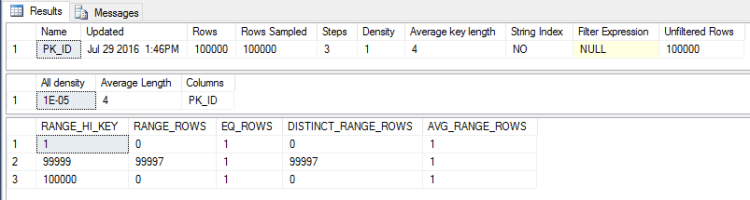
dbcc clonedatabase stats
There’s the stats, SQL thinks that there’s 1000 rows in the table, pretty cool.

What we’ve ended up with is a read only database with no data but the objects and stats of the target database.

First thing, I’d be doing is backing that clone up and bringing it down to my local instance. Want to see how code will execute against production but don’t want to touch that prod environment? Here’s your answer.

@Microsoft, can we have this for other versions of SQL please?