Friday Reading 2017-03-03

Fun week, lot’s of things going on and throughout I’ve been reading…

Windows Server Premium Assurance and SQL Server Premium Assurance
Microsoft announce Premium Assurance, an additional six years of support

SQL VNext sp_configure on Windows and Linux with dbatools
Rob explores the SpConfigure commands in dbatools in SQL instances running on Windows and Linux

William Durkin – My first MVP Award
William Durkin thanks those who have helped him along the way to becoming a Data Platform MVP. Congrats William!

SQL Browser, what is it good for? Absolutely something!
Chris Sommer goes through what the SQL Browser service actually does

Announcing Docker Enterprise Edition
Docker have release a new version for business-critical deployments

Have a good weekend!

A GUI for Docker Container Administration

I’ve been working with containers for a while now and one of the questions that always gets asked when I demo the technology to people is, is there a graphical user interface out there that can be used to manage containers?

Now, I’m happy with working on the command line and in many ways, I prefer it. But everyone has different preferences so I went out and had a look to see what’s available. It didn’t take me long to run into Portainer who have built exactly what I was looking for. A management UI for Docker.

So let’s run through the setup and then look at the system. There’s a couple of pre-requisities to this I’m afraid, the first one is that you must setup remote administration using TLS on the Docker host that you want to manage via Portainer. I’ve detailed how to do this here.

Also, Portainer doesn’t support managing a local Docker Engine running on Windows so the way I’ve set it up is to run Portainer locally on Windows 10 and then point it at a server running the Docker Engine I want to manage. This means that you’ll need to install Docker locally, you can do that here.

EDIT: Anthony Lapenna (t) has let me know that you can run Portainer outside of docker, so you don’t need to have the engine running on your Windows 10 machine if you don’t want to. Instructions are here (at the bottom of the page).

Ok, so once you’ve got Docker running locally, run the following to see the Portainer image in the Docker Hub: –

docker search portainer

dockersearchportainer

There’s the image that we need at the top, so pull that image down to your local repository: –

docker pull portainer/portainer

dockerpullportainer

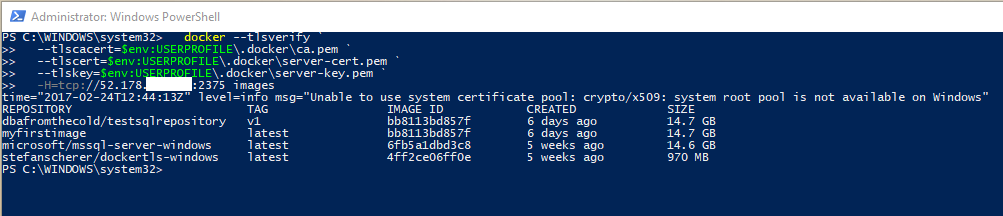
Once the image is down, verify that you can connect to the Docker Engine on the remote server from a powershell window on your local machine: –

docker --tlsverify `
  --tlscacert=$env:USERPROFILE\.docker\ca.pem `
  --tlscert=$env:USERPROFILE\.docker\server-cert.pem `
  --tlskey=$env:USERPROFILE\.docker\server-key.pem `
  -H=tcp://XX.XX.XX.XX:2375 images

What I’ve done here is copy the TLS certs generated on the server to my local machine and reference them via $env:USERPROFILE. Full details on setting this up is here.

Also, ignore the warning “Unable to use system certificate pool: crypto/x509: system root pool is not available on Windows“. Apparently it’s benign

If everything is working you should see the same output as running docker images on the server: –
dockerconnectremotely

OK, next step is to copy the certs into your C:\temp folder as the following script will copy them from that location into the container running Portainer. This is needed so that Portainer can connect to the Docker Engine running on the server.

copy-item $env:USERPROFILE\.docker\ca.pem C:\Temp
copy-item $env:USERPROFILE\.docker\server-cert.pem C:\Temp
copy-item $env:USERPROFILE\.docker\server-key.pem C:\Temp

Now we can create and run our Portainer container!

docker run -d -p 9000:9000 --name portainer1 -vC:/temp:C:/temp portainer/portainer -H tcp://XX.XX.XX.XX:2375 --tlsverify --tlscacert=C:/temp\ca.pem --tlscert=C:/temp\server-cert.pem --tlskey=C:/temp\server-key.pem

dockerrunportainer2

Once you’ve verified that the container is up and running you need to grab the private IP assigned to it: –

docker inspect portainer1

dockerinspectportainer

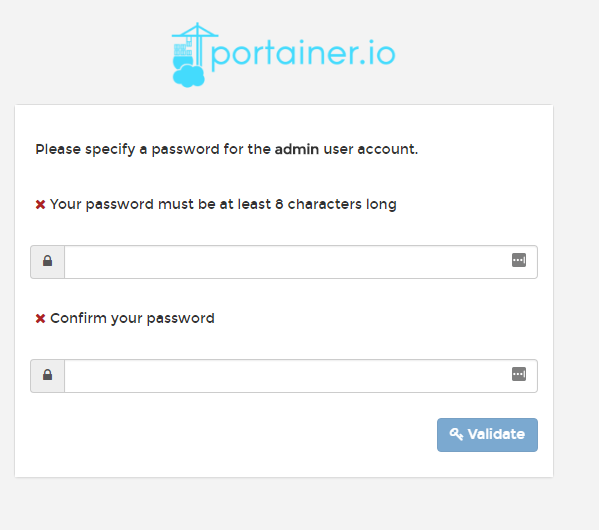
So the private IP address assigned to the container I’ve built is 172.26.17.197 so I’ll enter http://172.26.17.197:9000 into my web browser. If all has gone well you should see: –

portainersetpassword

Specify a password and then login. You will then see the Portainer dashboard:-

portainerdashboard

Viewing Containers: –

viewingcontainers

Viewing Images: –

viewingimages

It’s a pretty cool UI. Not only can you start/stop existing containers, you can pull new images down. I know it’s a bit fiddly to setup but if you can do this and hand it off to your users (don’t run it on your desktop though)…how much are they going to love you? 🙂

Thanks for reading!

Monday Coffee 2017-02-27

Ergh, not a fun weekend rugby wise. But anyway…

Last week Microsoft released an image for SQL Server 2016 SP1 Developer Edition in containers. Previously the only edition available was vNext Enterprise Evaluation which was a real problem in making containers a viable option for many businesses.

There’s no point in having a development environment referencing a SQL instance that is not the same version as production. How many people would be running vNext in production? I bet there’s a few (mad) early adopters out there but in the main, I would say most businesses would be running 2016, 2014 or 2012.

Having this image available means that developers/DBAs can now seriously look at containers as an option when building development environments. Need to build an environment quickly? That’s what containers give you. I’d love to see this technology become widely used in the SQL Server world. I’ve been working with them for over a year now and being able to spin up a new instance of SQL Server in seconds is really cool.

It does beg the question are Microsoft going to release images for other, earlier versions of SQL Server? I’m honestly not sure that they will but if they want containers to become more widespread that would be the way to do it. We’ll see what happens but even if they don’t there are other options out there.

Have a good week!

Friday Reading 2017-02-24

Wow that week absolutely flew by! Here’s what I’ve been reading…

Seatbelt learning with Uncle Buck
Buck Woody goes through how he learns on the move (great article)

Hardware selection for a home lab – Part 1
Glen Berry goes through using the Intel NUC series for a home lab environment

DevOps – A DBA’s Perspective
Paul Ibison gives his views on what DevOps means from a DBA perspective

Lots of Learning at SQL Bits
Steve Jones talks about why SQLBits is his favourite SQL event

NASA Telescope Reveals Largest Batch of Earth-Size, Habitable-Zone Planets Around Single Star
This is seriously cool

Have a good weekend!

Remotely Administering the Docker Engine on Windows Server 2016

Continuing on my series in working with Docker on Windows, I noticed that I always open up a remote powershell window when working with Docker on servers. Nothing wrong with this, if you want to know how to do that you can follow my instructions here.

However what if we want to connect to the Docker engine remotely? There’s got to be a way to do that right?

Well it’s not quite so straightforward, but there is a way to do it involving a custom image downloaded from the Docker Hub (built by Stefan Scherer [g|t]) whichs creates TLS certs to allow remote connections.

EDIT – I should point out that this is a method of administering a remote docker engine securely. You can expose a docker tcp endpoint and connect without using TLS certificates but given that docker has no built-in security, I’m not going to show you how to do that 🙂

Anyway, let’s go through the steps.

Open up a admin powershell session on your server and navigate to the root of the C: drive.

First we’ll create a folder to download the necessary certificates to: –

cd C:\
mkdir docker

Now we’re going to follow some of the steps outlined by Stefan Scherer here

So first, we need to create a couple more directories: –

cd C:\docker
mkdir server\certs.d
mkdir server\config
mkdir client\.docker

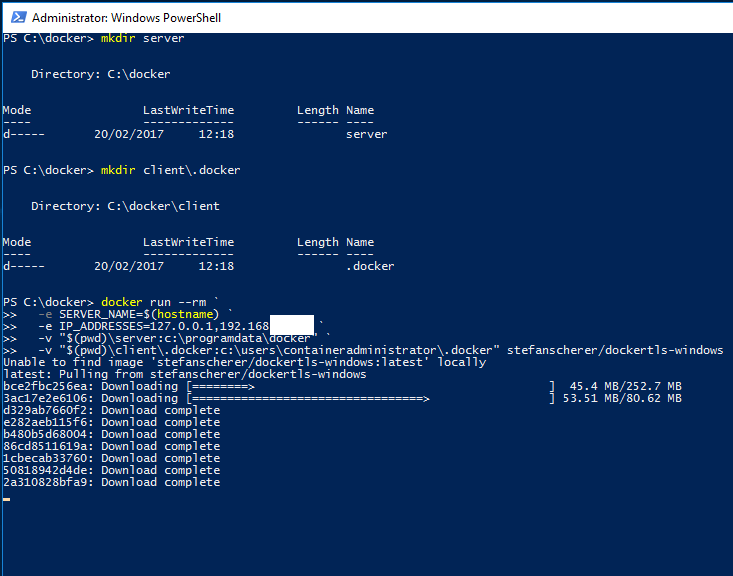
And now we’re going to download a image from Stephan’s docker hub to create the required TLS certificates on our server and drop them in the folders we just created (replace the second IP address with the IP address of your server): –

docker run --rm `
  -e SERVER_NAME=$(hostname) `
  -e IP_ADDRESSES=127.0.0.1,192.168.XX.XX `
  -v "$(pwd)\server:c:\programdata\docker" `
  -v "$(pwd)\client\.docker:c:\users\containeradministrator\.docker" stefanscherer/dockertls-windows
dir server\certs.d
dir server\config
dir client\.docker
dockercerts

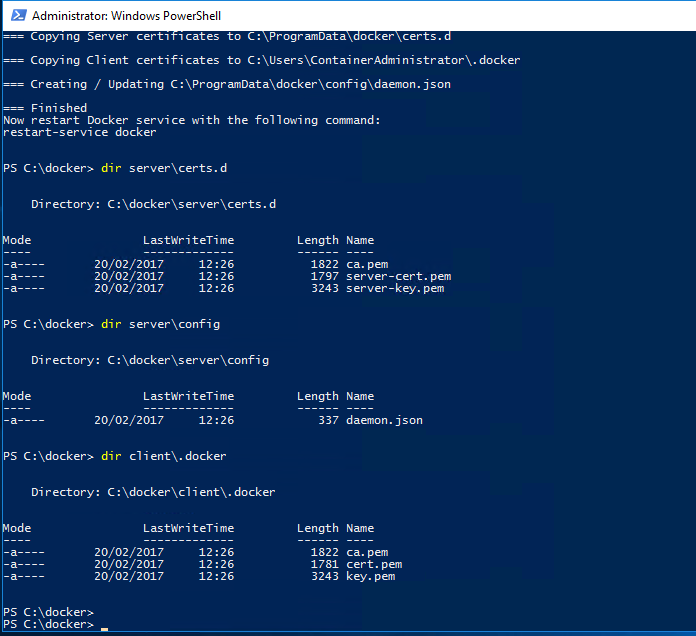
Once complete you’ll see: –

image

Now we need to copy the created certs (and the daemon.json file) to the following locations: –

mkdir C:\ProgramData\docker\certs.d
copy-item C:\docker\server\certs.d\ca.pem C:\ProgramData\docker\certs.d
copy-item C:\docker\server\certs.d\server-cert.pem C:\ProgramData\docker\certs.d
copy-item C:\docker\server\certs.d\server-key.pem C:\ProgramData\docker\certs.d
copy-item C:\docker\server\config\daemon.json C:\ProgramData\docker\config

Also open up the daemon.json file and make sure it looks like this: –

{
    "hosts":  [
                  "tcp://0.0.0.0:2375",
                  "npipe://"
              ],
    "tlscert":  "C:\\ProgramData\\docker\\certs.d\\server-cert.pem",
    "tlskey":  "C:\\ProgramData\\docker\\certs.d\\server-key.pem",
    "tlscacert":  "C:\\ProgramData\\docker\\certs.d\\ca.pem",
    "tlsverify":  true
}

Now restart the docker engine: –

restart-service docker

N.B. – If you get an error, have a look in the application event log. The error messages generated are pretty good in letting you know what’s gone wrong (for a freaking change…amiright??)

Next we need to copy the docker certs to our local machine so that we can reference them when trying to connect to the docker engine remotely

So copy all the certs from C:\ProgramData\docker\certs.d to your user location on your machine, mine is C:\Users\Andrew.Pruski\.docker

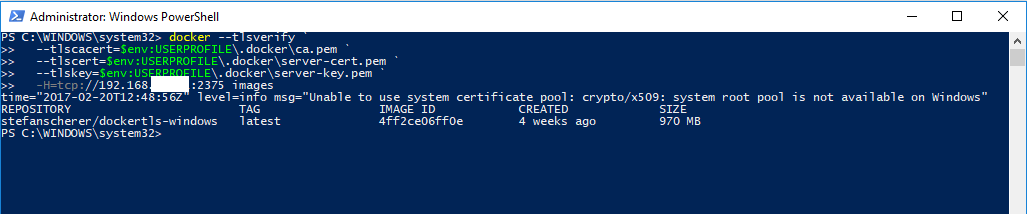
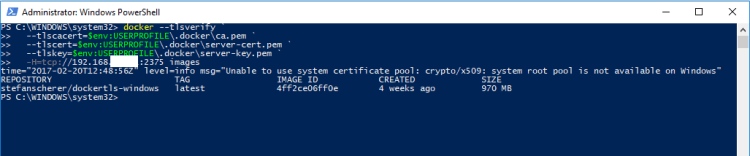
We can then connect remotely via: –

docker --tlsverify `
  --tlscacert=$env:USERPROFILE\.docker\ca.pem `
  --tlscert=$env:USERPROFILE\.docker\server-cert.pem `
  --tlskey=$env:USERPROFILE\.docker\server-key.pem `
  -H=tcp://192.168.XX.XX:2375 version
dockerremoteconnect

Remember that you’ll need to open up port 2375 on the server’s firewall and you’ll need the Docker client on your local machine (if not already installed). Also Microsoft’s article advises that the following warning is benign: –

level=info msg=”Unable to use system certificate pool: crypto/x509: system root pool is not available on Windows”

Whatever that means. Maybe I’ll just stick to the remote powershell sessions 🙂

Thanks for reading!