EDIT – 2018-10 – ACR Build is now known as ACR Tasks
In Part One I detailed how we can use ACR Build to push SQL Server docker images to the Azure Container Registry.
But that all seems a bit manual, doesn’t it?
One of the cool things about ACR build is that we can hook it into GitHub so when we commit to a repository it will build us a new image (very, very cool 🙂 ). Let’s run through how to set that up now…
There’s a couple of pre-reqs required to follow the code here. The first thing to do is fork and clone the following repository: –
https://github.com/dbafromthecold/AzureContainerRegistryBuild

The next thing to do is create a Personal Access Token (PAT) in GitHub.
Go to https://github.com/settings/tokens and select the following options for the new PAT: –

Scroll to the bottom of the page and hit Generate Token (make sure to copy the token)
Ok, now we’re set up to create a build task in ACR. I’m going to continue on from my previous post so will log into Azure: –
az login
N.B. – In Part One I used a powershell console however in this post I’ve switch to Bash for Windows. This is because if you try to create a build task in powershell, it’ll error out: –

I’ve played around a bit but couldn’t get it to work, so I cut my losses and jumped into bash. Probably shouldn’t be running the Azure-CLI commands in a powershell window but I needed to previously as I had to build a docker image locally, we don’t need to do that now.
Before we do anything else let’s just verify that we can see the existing repository created in Part One and the tagged image in it: –
az acr repository show-tags --name TestContainerRegistry01 --repository testimage<a

Great! Now let’s create the build task: –
az acr build-task create \
    --registry TestContainerRegistry01 \
    --name buildsqlimage \
    --image testimage:{{.Build.ID}} \
    --context https://github.com/<your-github-username>/AzureContainerRegistryBuild \
    --branch master \
    --git-access-token YOUR_PERSONAL_ACCESS_TOKEN
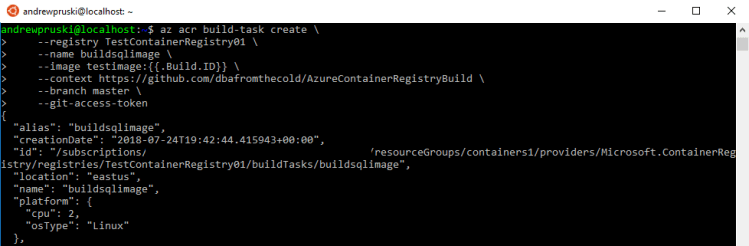
N.B. – The {{.Build.ID}} will generate a tag for the new image created within the repository (based on the number created by ACR Build)
Fantastic, one build task created! How easy was that??
Let’s test by running: –
az acr build-task run --registry TestContainerRegistry01 --name buildsqlimage
And the progress of the build task can be monitored: –
az acr build-task logs --registry TestContainerRegistry01
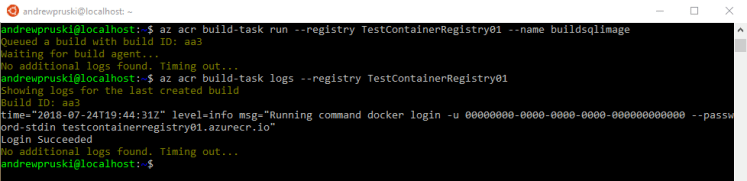
After a while (be patient 🙂 ) a new tag will be in the repository: –
az acr repository show-tags --name TestContainerRegistry01 --repository testimage

Cool! Now let’s commit to the repository in GitHub and see if a new image is created. So navigate to where you cloned the repository: –
cd AzureContainerRegistryBuild
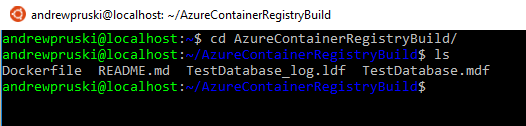
What we’re going to do is drop an environment variable into the dockerfile to change the port that SQL is listening on.
nano Dockerfile
Drop the following into the dockerfile:-
ENV MSSQL_TCP_PORT=15666

Now commit and push!
git add .
git commit -m "Changed the port for SQL Server"
git push
And then a new tag will be in the repository!
az acr repository show-tags --name TestContainerRegistry01 --repository testimage

Awesome! How cool is that?!
To make sure that it’s worked, let’s run an Azure Container Instance (using the credentials stored in the Key Vault created in Part One): –
az container create \
    --resource-group containers1 \
    --image testcontainerregistry01.azurecr.io/testimage:aa4 \
    --registry-username $(az keyvault secret show \
                        --vault-name aptestkeyvault01 \
                        --name testcontainerregistry-pull-usr \
                        --query value --output tsv) \
    --registry-password $(az keyvault secret show \
                        --vault-name aptestkeyvault01 \
                        --name testcontainerregistry-pull-pwd \
                        --query value --output tsv) \
    --name testcontainer2 \
    --cpu 2 --memory 4 \
    --environment-variables SA_PASSWORD=Testing1122 \
    --ip-address public \
    --ports 15666
N.B. – Make sure the image tag is correct!
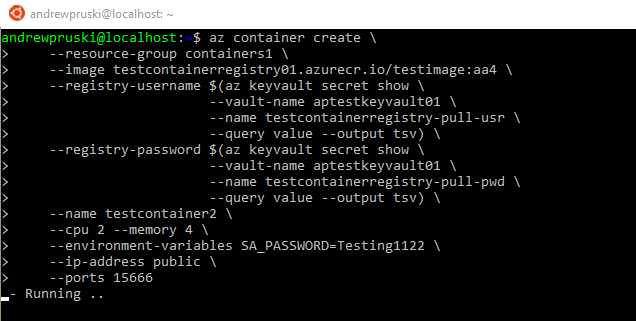
Confirm that the ACI is up and running: –
az container show --name testcontainer2 --resource-group containers1
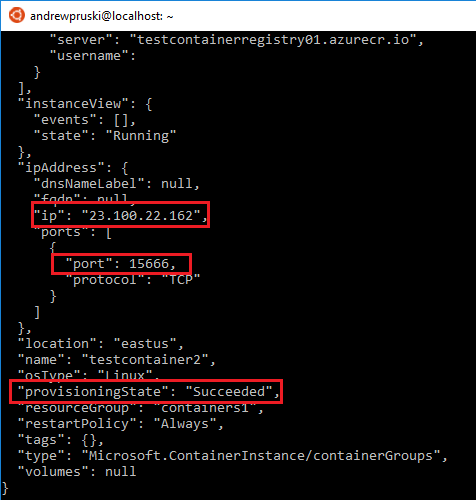
And BOOM! Connect to SQL Server: –
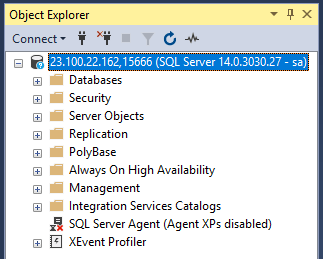
How. Cool. Is. That? Automatically creating SQL images in ACR with just a commit to a Github repo!
Thanks for reading!










 DBA From The Cold