EDIT – 2018-10 – ACR Build is now known as ACR Tasks
Whenever I’ve pushed images up to an Azure Container Registry I’ve been building them locally (using Docker for Windows) and then manually pushing them up. However, I don’t need to do this. What I can do instead is use the Azure Container Registry Build service.
Let’s have a look at how it works.
To follow along with the code here you will need the Azure-CLI installed and Docker for Windows running
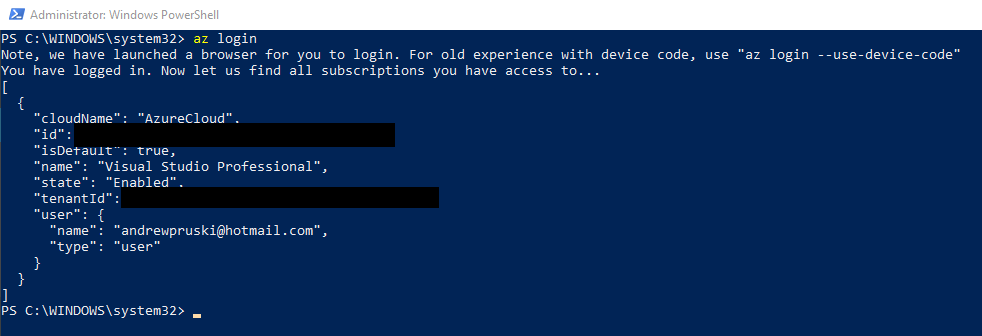
First things first, log into azure: –
az login
Then create a resource group: –
az group create --resource-group containers1 --location eastus

Create a registry (the ACR): –
az acr create --resource-group containers1 --name TestContainerRegistry01 --sku Standard --location eastus

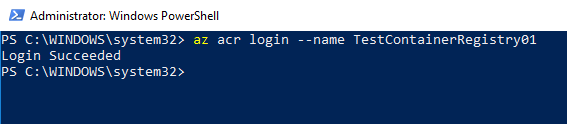
And then login to the registry: –
az acr login --name TestContainerRegistry01
Now create a directory on your local machine to hold the repo that we’re going to use to build the image: –
mkdir c:\git\dbafromthecold
cd c:\git\dbafromthecold
And then pull the repo down: –
git clone https://github.com/dbafromthecold/AzureContainerRegistryBuild.git

The dockerfile within this repo is pretty simple. All it’s going to do is build us an image that when run will have a database named TestDatabase already there. For more info on building images from a dockerfile, check out my blog here
Now navigate to the repo: –
cd c:\git\dbafromthecold\AzureContainerRegistryBuild
Great! We’re ready to build the image and push it to the Azure Container Registry.
To do this, run: –
az acr build --registry TestContainerRegistry01 --image testimage:latest .

Hmm…that does look like it hasn’t worked but trust me…it has (just wait a few minutes) 🙂
To verify that the new repository has been created: –
az acr repository list --name TestContainerRegistry01 --output table
And to view the tagged image within it: –
az acr repository show-tags --name TestContainerRegistry01 --repository testimage

Awesome! Our custom image is in our ACR!
But has it worked? Has it really? Oh ye of little faith…
I guess the only way to find out is to run a container! So let’s run a Azure Container Instance from our new image.
I’ve already blogged about creating ACIs here so I’m just going to run through this quickly but don’t worry, everything you need to deploy an ACI is in the following code.
In order for the ACI to pull the image from our new ACR we need to store credentials that can be used to grant access. So first, create a keyvault: –
az keyvault create --resource-group containers1 --name aptestkeyvault01
Once the vault is created, we need to create a service principal with read permissions to the ACR and store its credentials in the vault: –
az keyvault secret set `
  --vault-name aptestkeyvault01 `
  --name testcontainerregistry-pull-pwd `
  --value $(az ad sp create-for-rbac `
  			--name testcontainerregistry-pull `
  			--scopes $(az acr show --name testcontainerregistry01 --query id --output tsv) `
  			--role reader `
  			--query password `
  			--output tsv)
Then we grab the service principal’s appId which will be the username passed to the Azure Container Registry: –
az keyvault secret set `
  --vault-name aptestkeyvault01 `
  --name testcontainerregistry-pull-usr `
  --value $(az ad sp show `
  		--id http://testcontainerregistry-pull --query appId --output tsv)
Ok, now we can run a Azure Container Instance from our custom image!
az container create `
    --resource-group containers1 `
    --image testcontainerregistry01.azurecr.io/testimage:latest `
	--registry-username $(az keyvault secret show `
						--vault-name aptestkeyvault01 `
						--name testcontainerregistry-pull-usr `
						--query value --output tsv) `
	--registry-password $(az keyvault secret show `
						--vault-name aptestkeyvault01 `
						--name testcontainerregistry-pull-pwd `
						--query value --output tsv) `
	--name testcontainer1 `
	--cpu 2 --memory 4 `
	--environment-variables SA_PASSWORD=Testing1122 `
	--ip-address public `
	--ports 1433
Ok, we need to wait for the ACI to spin up. We can monitor for this by running: –
az container show --name testcontainer1 --resource-group containers1

Once the above command comes back with a status of Succeeded and an IP address we can drop that into SSMS: –

And boom! We’ve connected to an ACI created from our custom image built using Azure Container Registry Build!
So that’s an intro into ACR Build. There’s plenty more that we can do with it and I’ll explore that in future posts.
Thanks for reading!
 DBA From The Cold