Up until now my posts about containers have been talking about working with one container only. In the real world this will never be the case, at any one time there will be multiple containers (I have over 30) running on a host.
I need a way to get multiple containers up and running easily. There are two different approaches to doing this: –
- Application server driven
- Container host driven
In the application server driven approach, the application server will contact the container host, build & run a container and capture details of the container (such as the port number) in order for the application(s) to connect.
This ad-hoc approach works well as containers are only spun up and used when needed, conserving resources on the host. However, this does mean that the applications will have to wait until the containers come online.
Ok, I know that spinning up containers is a short process, but I’m all about reducing deployment time.
What if we know how many containers will be needed? What if we want our applications to instantly connect to containers the second they are deployed?
This post is going to go through the steps needed in order to use docker compose to build multiple containers at once. Compose is a tool defined as: –
A tool for defining and running multi-container Docker applications.
As SQL Server people we’re only going to be interested in one application but that doesn’t mean we can’t use compose to our advantage.
What I’m going to do is go through the steps to spin up 5 containers running SQL Server, all listening on different ports with different sa passwords.
Bit of prep before we run any commands. I’m going to create a couple of folders on my C:\ drive that’ll hold the compose and dockerfiles: –
mkdir C:\docker
mkdir C:\docker\builds\dev1
mkdir C:\docker\compose
Within the C:\docker\builds\dev1 directory, I’m going to drop my database files and my dockerfile: –

N.B. – note the name of the dockerfile (dockerfile.dev1)
Here’s the code within my dockerfile: –
# building our new image from the microsft SQL 2017 image
FROM microsoft/mssql-server-windows


# creating a directory within the container
RUN powershell -Command (mkdir C:\\SQLServer)


# copying the database files into the container
# no file path for the files so they need to be in the same location as the dockerfile
COPY DevDB1.mdf C:\\SQLServer
COPY DevDB1_log.ldf C:\\SQLServer

COPY DevDB2.mdf C:\\SQLServer
COPY DevDB2_log.ldf C:\\SQLServer

COPY DevDB3.mdf C:\\SQLServer
COPY DevDB3_log.ldf C:\\SQLServer

COPY DevDB4.mdf C:\\SQLServer
COPY DevDB4_log.ldf C:\\SQLServer

COPY DevDB5.mdf C:\\SQLServer
COPY DevDB5_log.ldf C:\\SQLServer


# attach the databases into the SQL instance within the container
ENV attach_dbs="[{'dbName':'DevDB1','dbFiles':['C:\\SQLServer\\DevDB1.mdf','C:\\SQLServer\\DevDB1_log.ldf']}, \
	{'dbName':'DevDB2','dbFiles':['C:\\SQLServer\\DevDB2.mdf','C:\\SQLServer\\DevDB2_log.ldf']}, \
	{'dbName':'DevDB3','dbFiles':['C:\\SQLServer\\DevDB3.mdf','C:\\SQLServer\\DevDB3_log.ldf']}, \
	{'dbName':'DevDB4','dbFiles':['C:\\SQLServer\\DevDB4.mdf','C:\\SQLServer\\DevDB4_log.ldf']}, \
	{'dbName':'DevDB5','dbFiles':['C:\\SQLServer\\DevDB5.mdf','C:\\SQLServer\\DevDB5_log.ldf']}]"
In the C:\docker\compose directory, I’m going to create one file called
docker-compose.yml which is a file for defining the services I want to run in my containers.
The code inside that file is: –
# specify the compose file format
# this depends on what version of docker is running
version: '3'


# define our services, all database containers
# each section specifies a container...
# the dockerfile name and location...
# port number & sa password
services:
  db1:
    build:
        context: C:\docker\builds\dev1
        dockerfile: dockerfile.dev1
    environment:
      SA_PASSWORD: "Testing11@@"
      ACCEPT_EULA: "Y"
    ports:
      - "15785:1433"
  db2:
    build:
        context: C:\docker\builds\dev1
        dockerfile: dockerfile.dev1
    environment:
      SA_PASSWORD: "Testing22@@"
      ACCEPT_EULA: "Y"
    ports:
      - "15786:1433"
  db3:
    build:
        context: C:\docker\builds\dev1
        dockerfile: dockerfile.dev1
    environment:
      SA_PASSWORD: "Testing33@@"
      ACCEPT_EULA: "Y"
    ports:
      - "15787:1433"
  db4:
    build:
        context: C:\docker\builds\dev1
        dockerfile: dockerfile.dev1
    environment:
      SA_PASSWORD: "Testing44@@"
      ACCEPT_EULA: "Y"
    ports:
      - "15788:1433"
  db5:
    build:
        context: C:\docker\builds\dev1
        dockerfile: dockerfile.dev1
    environment:
      SA_PASSWORD: "Testing55@@"
      ACCEPT_EULA: "Y"
    ports:
      - "15789:1433"
N.B. – To check which versions of docker are compatible with which compose file formats, there is a compatibility matrix here
Now that we have our files created, let’s run our first compose command. To check if it’s installed run: –
docker-compose
N.B. – this is a test command, you should see a help reference output if it is installed (and you can skip the next part).
Hmm…

So we need to install. To do this, run:-
Invoke-WebRequest "https://github.com/docker/compose/releases/download/1.14.0/docker-compose-Windows-x86_64.exe" -UseBasicParsing -OutFile $Env:ProgramFiles\docker\docker-compose.exe
The 1.14.0 in the command above is the latest version. To check what the latest version, jump onto this GitHub page.
Once the install has finished, verify the version: –
docker-compose version

We need to navigate to the C:\docker\compose directory before we run our first compose command: –
cd C:\docker\compose
And now we can run our compose command. The command to utilise compose to build our containers is very simple: –
docker-compose up -d

This script has worked through the docker-compose.yml file and built 5 containers referencing dockerfile.dev1
I can confirm this by running: –
docker ps

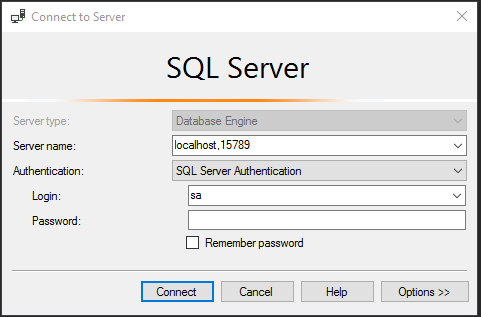
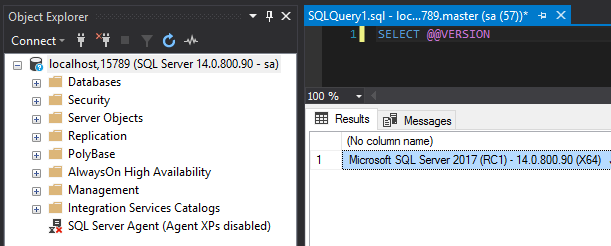
Excellent, five containers up and running! By using docker compose we can build multiple containers running SQL with one command. Very useful for building a development environment, once our applications are deployed they can connect to SQL within the containers instantly.
Final note
One thing to mention, you may come across this error: –

The way I got around this was to disable the existing vEthernet (HNS Internal NIC) adapter in my network connections. Running compose seems to create a new virtual NIC, so you will end up with: –

Let me know if you come across any other issues and I’ll investigate 🙂
Thanks for reading!







 DBA From The Cold